Make images Smolr

For some things, smaller is better... or so I've been told...

Get Smolr!
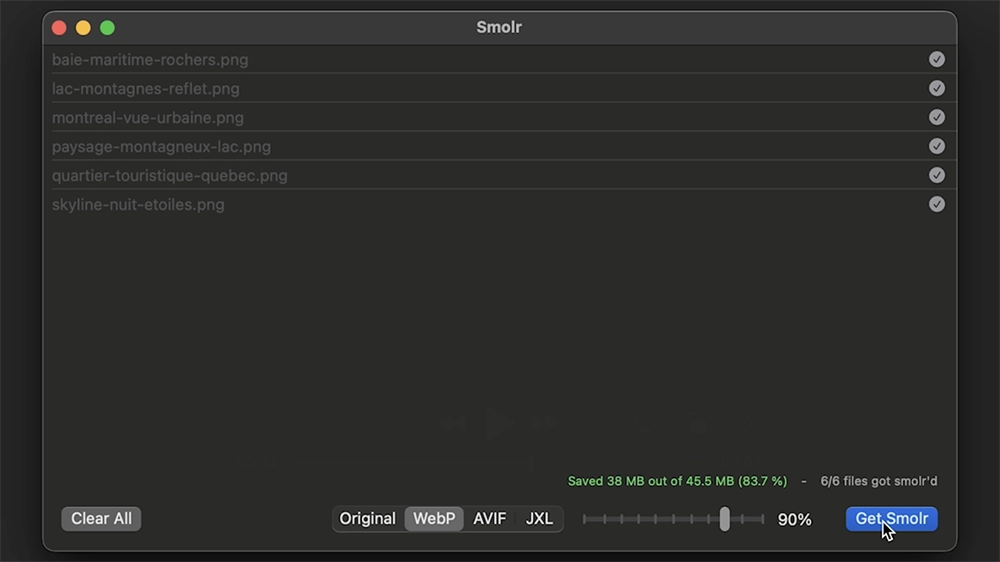
Screenshot of converting images on Smolr
Demonstration of Smolr compressing and converting images

What is Smolr?

Smolr is a small tool that let you convert and optimize your image files to make them smaller and more usable.
Nothing more.

Get Smolr

Get Smolr

Smolr is free but support goes a long way keeping small projects maintained and growing.

Frequently Asked Questions

If you have any questions not answered here, feel free to open an issue on Github.

Is Smolr really free?

Yes. Smolr is free to download and use.
You can name your price if you'd like to support development, but it's optional.
You can also support my work on buymeacoffee.

Why won’t Smolr open on my Mac and how can I fix it?

macOS may block apps that aren’t downloaded from the App Store by default. To open Smolr safely, follow these steps:

  1. Drag Smolr.app into your Applications folder.
  2. If you see the message: “Smolr.app can’t be opened because it was not downloaded from the App Store.” click OK.
  3. Open System Settings → Privacy & Security.
    Scroll to the bottom where you’ll see: “Smolr.app was blocked to protect your Mac.”
  4. Click Open Anyway.
  5. If prompted with “Smolr.app is not from the App Store. Are you sure you want to open it?”, click Open.

Smolr should now launch normally, and you won’t need to repeat these steps for future launches.

Which macOS version do I need to run Smolr?

Smolr is tested and developped for macOS 14.0 or later.
It works on both ARM64 and Intel.

Does Smolr upload my images anywhere?

No.
All image processing happens locally on your Mac. Your files never leave your device.

What image formats does Smolr support?

Smolr supports common formats like JPEG, PNG, and GIF, as well as modern formats such as WebP, AVIF, and JPEG XL (JXL).

Is Smolr lossless?

It can be.
You can choose between lossless conversion or controlled quality reduction, depending on your needs.

What are the optimization profiles and when should I use them?

Profiles control how hard each encoder works to compress your images.

  • Fast is best when speed matters, like previews or large batches where file size isn't critical.
  • Balanced is the default and works well for most use cases.
  • Quality and Size push encoders to their maximum effort for the best visual fidelity or smallest file size, but expect processing to take noticeably longer.

The quality slider (50-100%) always applies on top of whichever profile you choose.

Why is Smolr open source?

Because transparency matters.
You can inspect the code, understand what the app does, and trust that nothing hidden is happening in the background.

How to contact you?

If you find a bug or have a feature request, you can proceed through the Github page.

Could this have been a shell script?

Probably, but this is nice too.

Privacy Policy

Effective Date: 2026/01/22

We respect your privacy. This website does not collect or store any personal information from visitors. Payments All payments and personal data (such as name, email, or payment information) are handled exclusively by our third-party payment processors, Payhip and PayPal.

We do not have access to your payment information, and it is not stored on this website.

Cookies and Tracking

This website does not use cookies, analytics, or any tracking tools. Your visit is completely private, and no information is collected beyond what is necessary to display this website.

Contact If you have any questions regarding this privacy policy, you can contact us at: hello@jimjim.ca